


Already keeping a builder log on the EAA Builders Log or MyKitLog website? You don’t have to start over. KitFlight can read your public log and bring its entries, categories, build hours and photos into a KitFlight project, so you can carry on logging from your phone or iPad.
About the examples on this page. To show how importing works, we use two builder logs that are publicly available on those websites: an RV-14 on EAA Builders Log and an RV-8 on MyKitLog. These are public builder logs. They are not related to, owned by or endorsed by KitFlight, and all their content belongs to their builders. EAA Builders Log is a website of the EAA, and MyKitLog is run by Matronics; neither is affiliated with KitFlight.
Before you start
- Create a project to import into. Imported entries are added to the project that’s open in KitFlight, so create a new project first, or open the project you want to add them to.
- Make sure your log is public. KitFlight reads the same pages anyone can see in a web browser. It doesn’t need your password for either website.
- Stay connected and keep KitFlight open. Large logs with many photos can take several minutes.
1. Open the import screen
In the project sidebar, tap ⚙ and choose Import Work Logs. Then pick where your log lives under Source:
- EAA Builders Logs for eaabuilderslog.org
- My KitLog Logs for mykitlog.com
- KitFlight JSON to restore a KitFlight export or backup
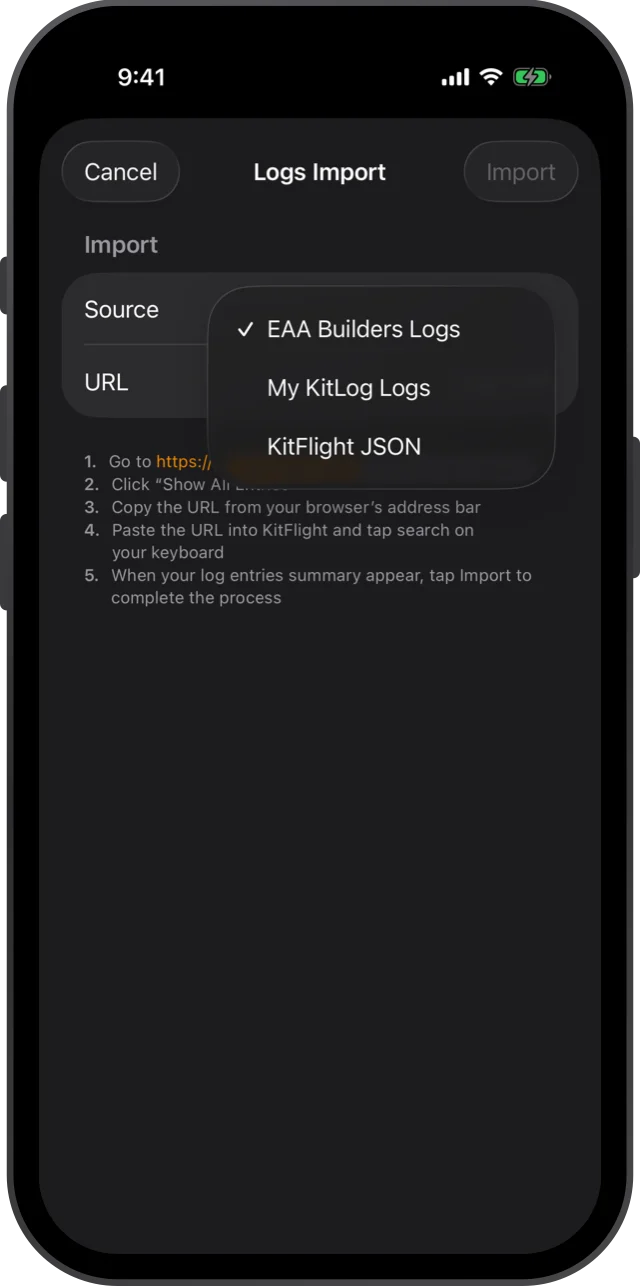
2a. Importing from EAA Builders Log
- In a web browser, go to eaabuilderslog.org and open your project.
- Click Show All Entries so the page lists every entry, not just one category.
- Copy the address from the browser’s address bar. It looks like
https://eaabuilderslog.org/?blproject&proj=…&cat=all… - In KitFlight, paste it into URL and tap search on the keyboard.
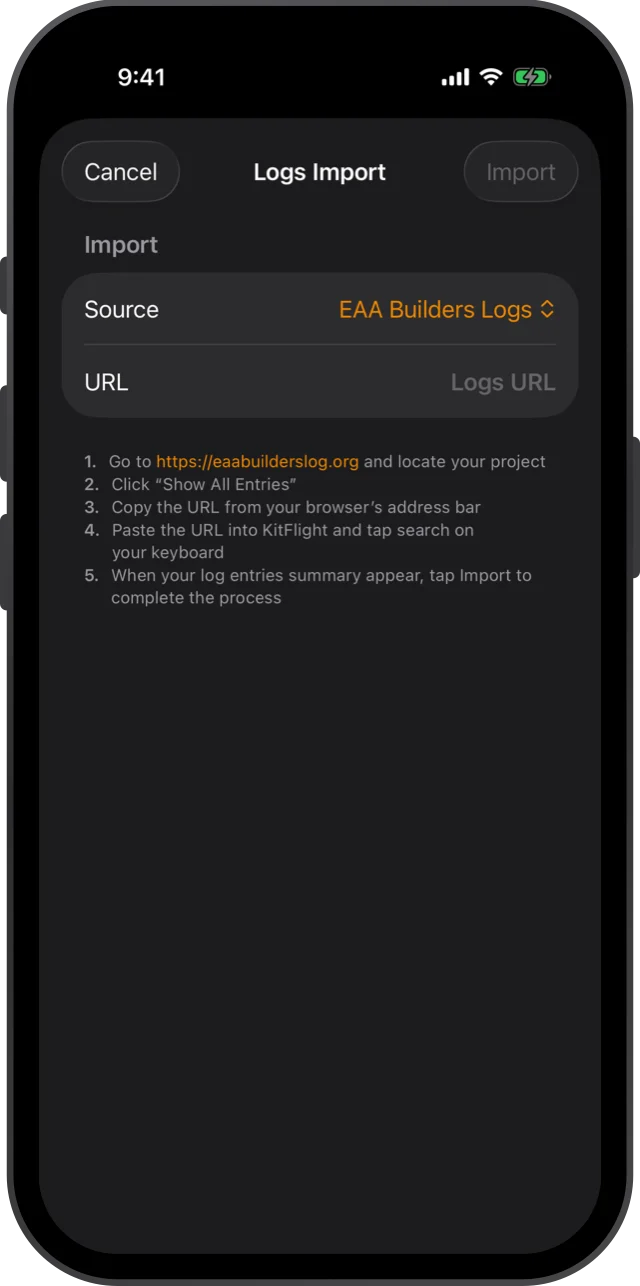
Tip: If you copied the address just before opening the import screen, KitFlight offers it straight away. Tap Import on the Website Available banner.
2b. Importing from MyKitLog
- In a web browser, go to mykitlog.com and open your builder site.
- Copy your site’s address, for example
http://www.mykitlog.com/markejackson/. - In KitFlight, paste it into URL and tap search on the keyboard.
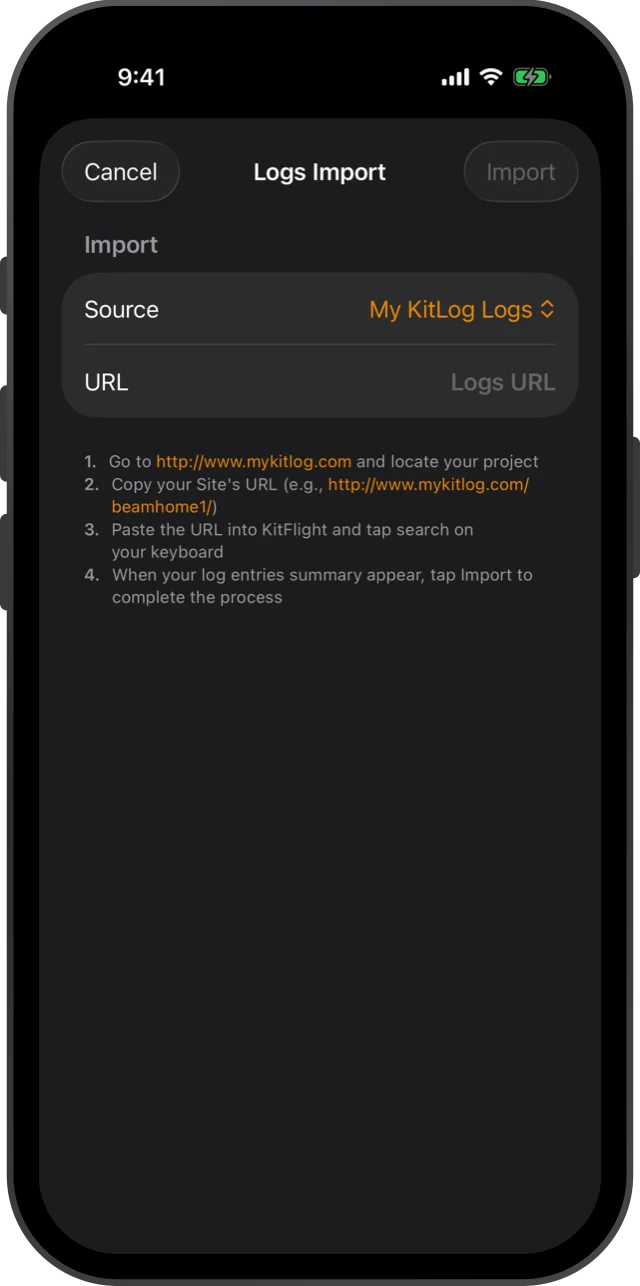
3. Check the summary and import
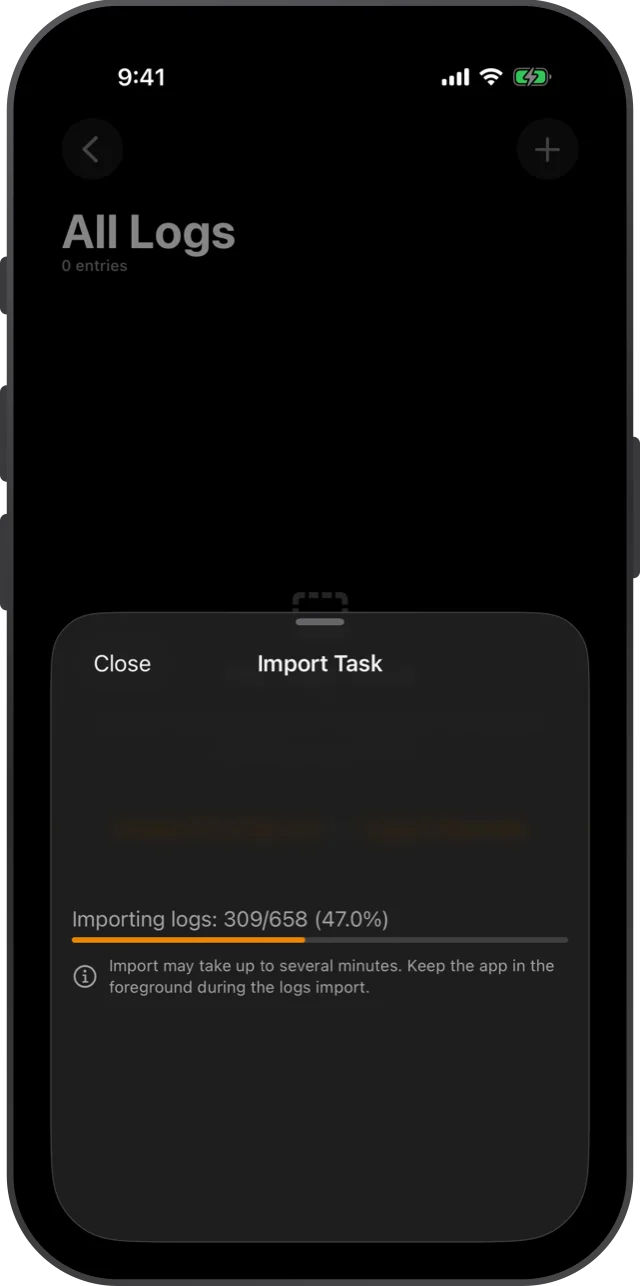
KitFlight reads the log and shows a summary of what it found, such as the number of records and categories (and, for EAA Builders Log, the total hours and photos). For the public RV-8 log on MyKitLog, that’s 658 records in 6 categories.
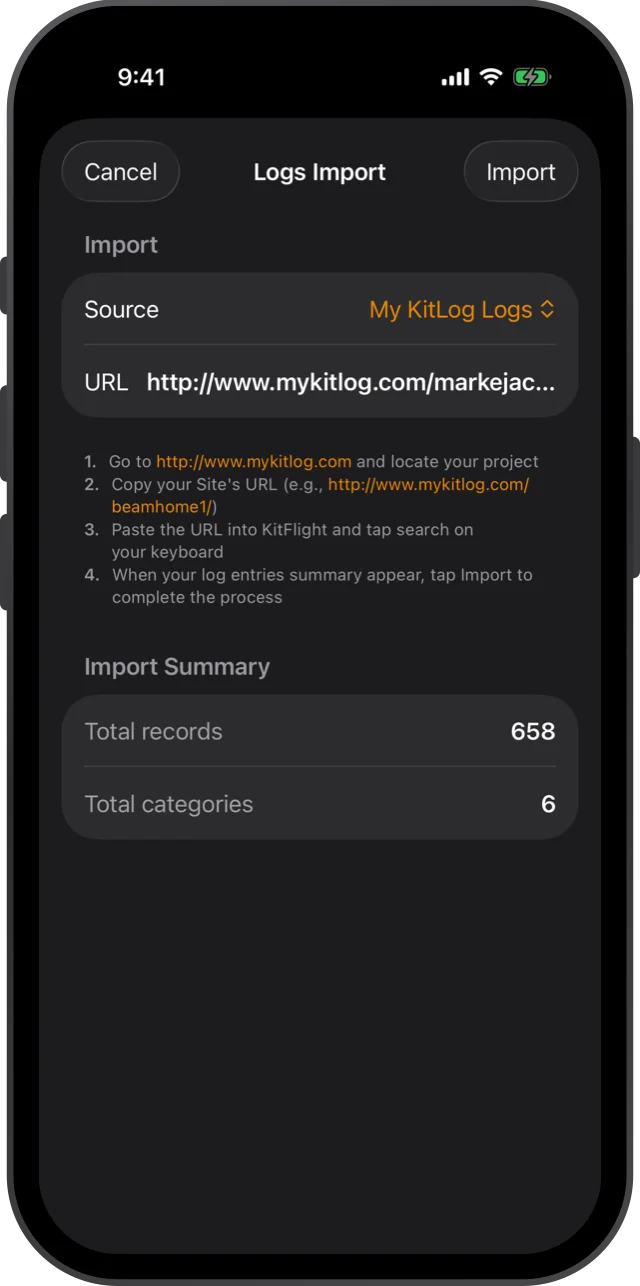
If the numbers look right, tap Import. KitFlight shows the progress as it goes. Keep the app open until it finishes.
What gets imported
- Entries, with their dates, titles and descriptions
- Categories – each category on the website becomes a KitFlight category. Categories with the same name as one you already have are merged.
- Build time for each entry
- Manual references (MyKitLog)
- Photos attached to the entries
After the import, the entries are stored on your device (and in your iCloud, if sync is on), so you can read them any time, even offline. The original website isn’t changed.
Good to know
- Importing again adds the entries a second time, so import each log once.
- If nothing is found, check that you copied the full address (for EAA Builders Log, after clicking Show All Entries) and that your log is public. If it still doesn’t work, get in touch and include the address.