


Your builder log is a record you may need for years, for inspections, insurance and selling the aircraft. KitFlight stores everything on your device and in your own iCloud, and gives you several ways to keep extra copies.
All the options below are in the ⚙ menu at the top right of the project sidebar.
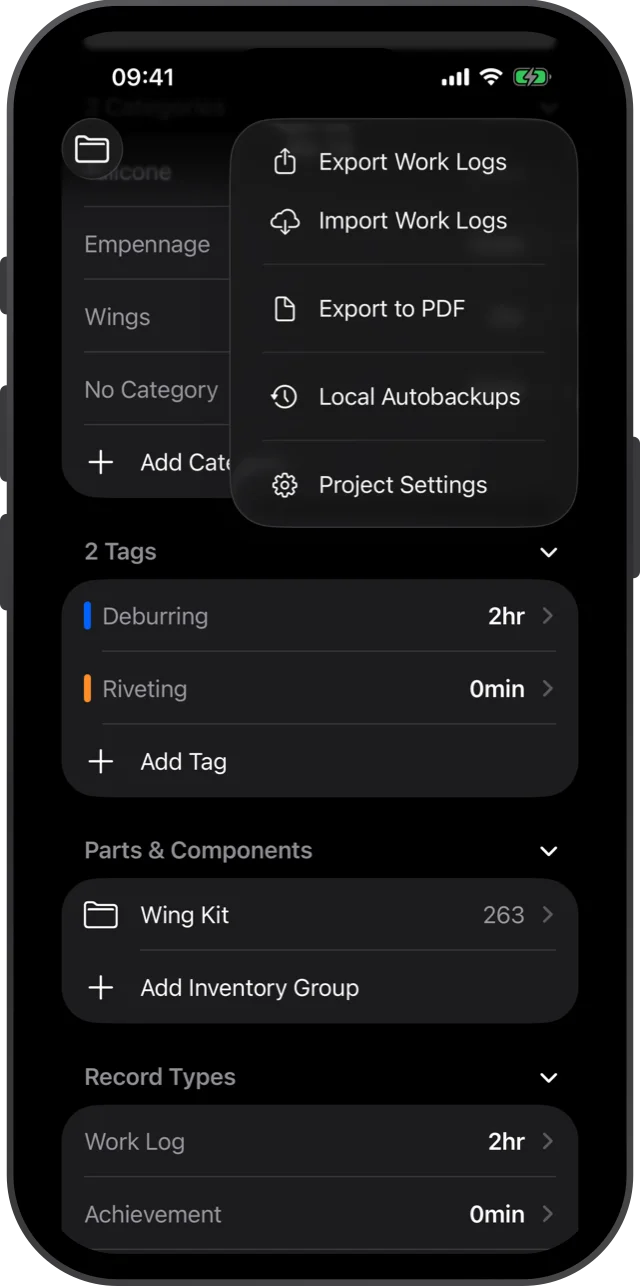
Exporting work logs
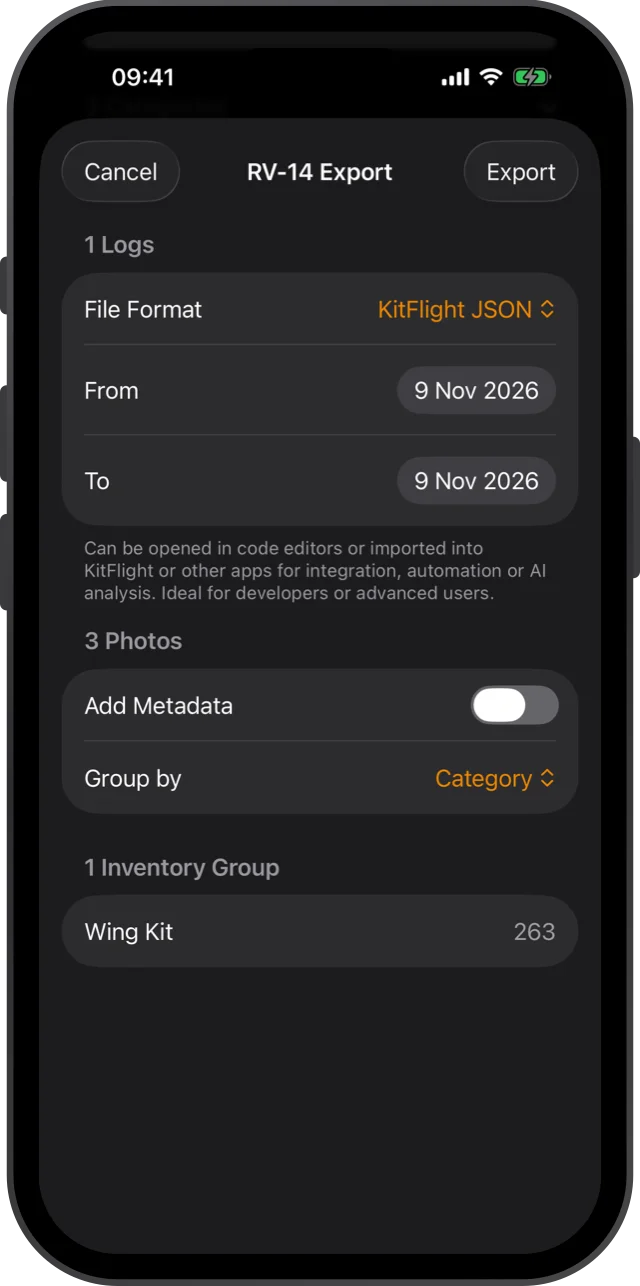
Choose Export Work Logs and pick a File Format:
- KitFlight JSON – a complete copy of the project that you can import back into KitFlight, or use with other apps and AI tools.
- CSV – opens in Excel, Numbers or Google Sheets. Good for viewing, printing or analysing your logs as a table.
- Jekyll – Markdown files with images, ready to publish as a blog on GitHub Pages or any Jekyll site.
Set the From and To dates to export part of the build. For photos you can choose Add Metadata, which writes the log text and photo description into each image file, and how to Group by the photos. Tap Export and choose where to save or share the file.
Exporting a PDF
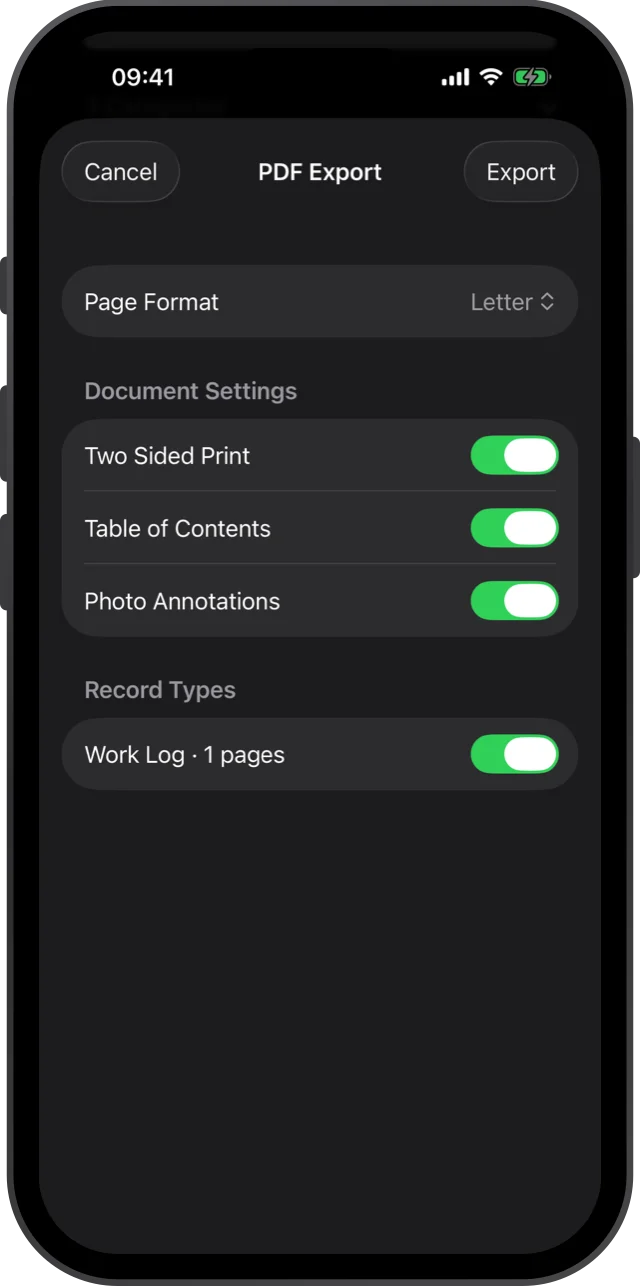
Choose Export to PDF for a printable builder log. You can pick:
- Page Format – Letter or A4
- Two Sided Print, Table of Contents and Photo Annotations
- Which Record Types to include
Automatic local backups
You don’t need to remember to back up: KitFlight backs up each project’s logs, inventory and documents to your iPhone or iPad on its own, as a zip file. It runs when you open the app and when you leave it, at most once an hour, and only when something has changed.
Each project keeps two backups:
- Latest – refreshed whenever the project changes.
- Monthly – once a month, the previous Latest backup is kept as the monthly copy. This gives you a second, older copy if something goes wrong with the newest one.
Backups are also protected against bad data. If the project suddenly looks much smaller than the last backup (for example, during an iCloud sync problem), KitFlight keeps the existing backup instead of overwriting it, and tells you why. Backups also survive deleting a project, so you can bring a deleted project back.
Open Local Autobackups to see them. Each backup shows how many logs, photos and documents it holds, the total time and when it was made.
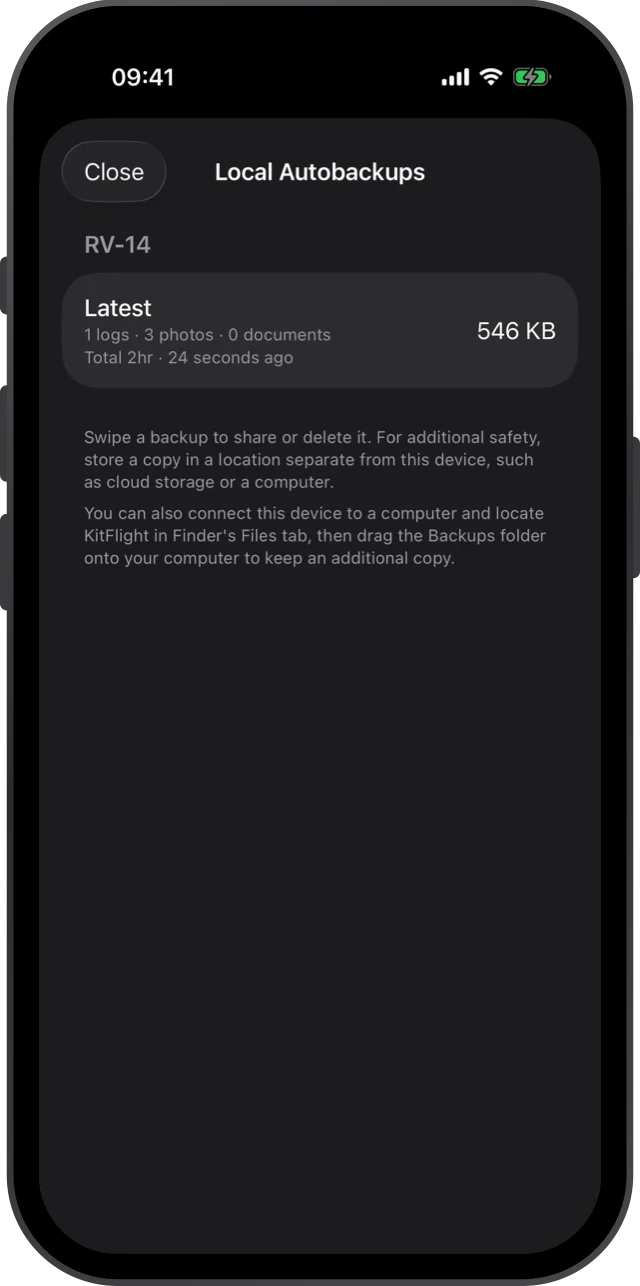
Backups live on the same device as your data, so keep another copy somewhere else:
- Swipe a backup to Share it, for example to iCloud Drive, Google Drive or your computer.
- Or connect your iPhone to a computer, find KitFlight in Finder’s Files tab, and drag the Backups folder onto your computer.
Restoring a backup
Choose Import Work Logs, select KitFlight JSON and pick the backup zip file.
Backup reminders
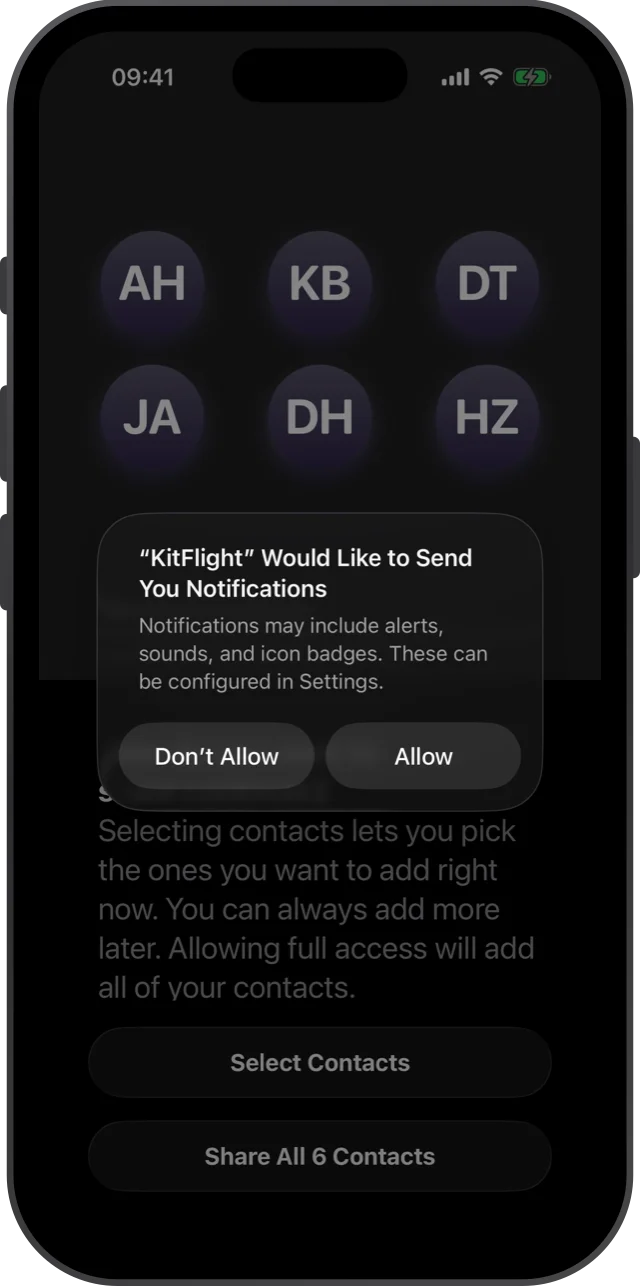
The first time you change something, KitFlight asks to send you notifications. Allow them to get backup reminders.
If a project changes and isn’t exported or backed up for 30 days, you get a Backup Overdue notification. Tap it to go straight to the export. Every export or backup resets the 30-day clock.