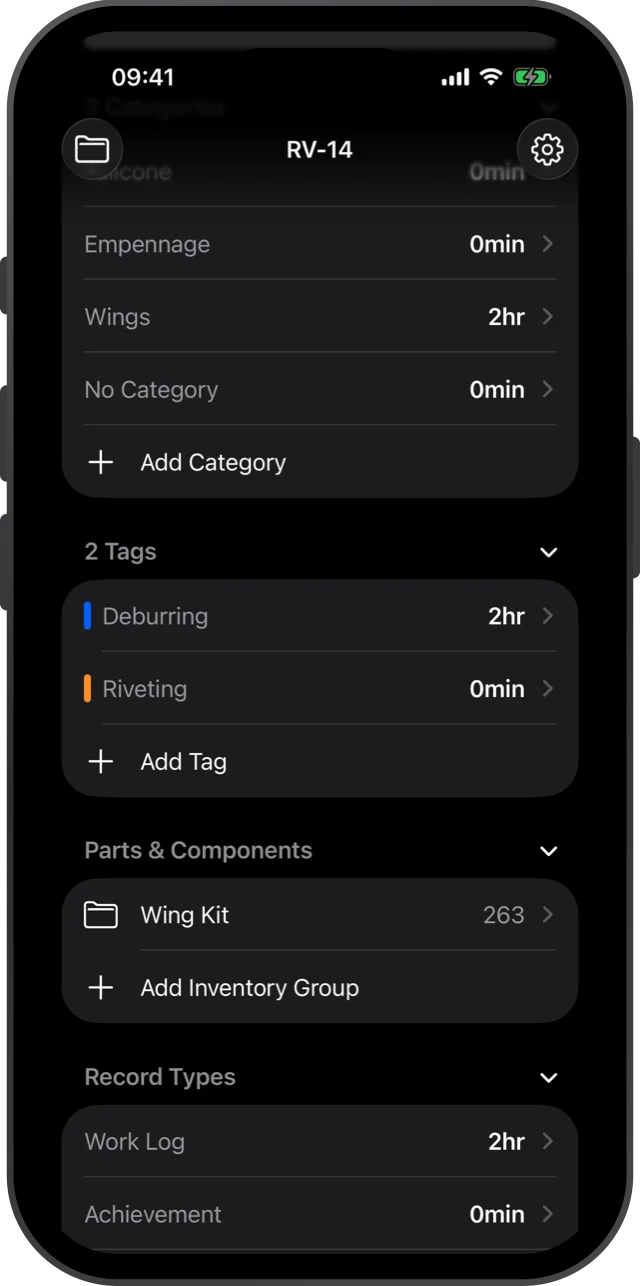


Log entries are the heart of your builder log. Each one records what you did, when, how long it took and who helped, with photos to prove it.
Starting an entry
- From All Logs, tap + at the top right.
- Or open a part in your inventory, tap + and choose Log Related Work. The entry starts with that part already linked.
General info
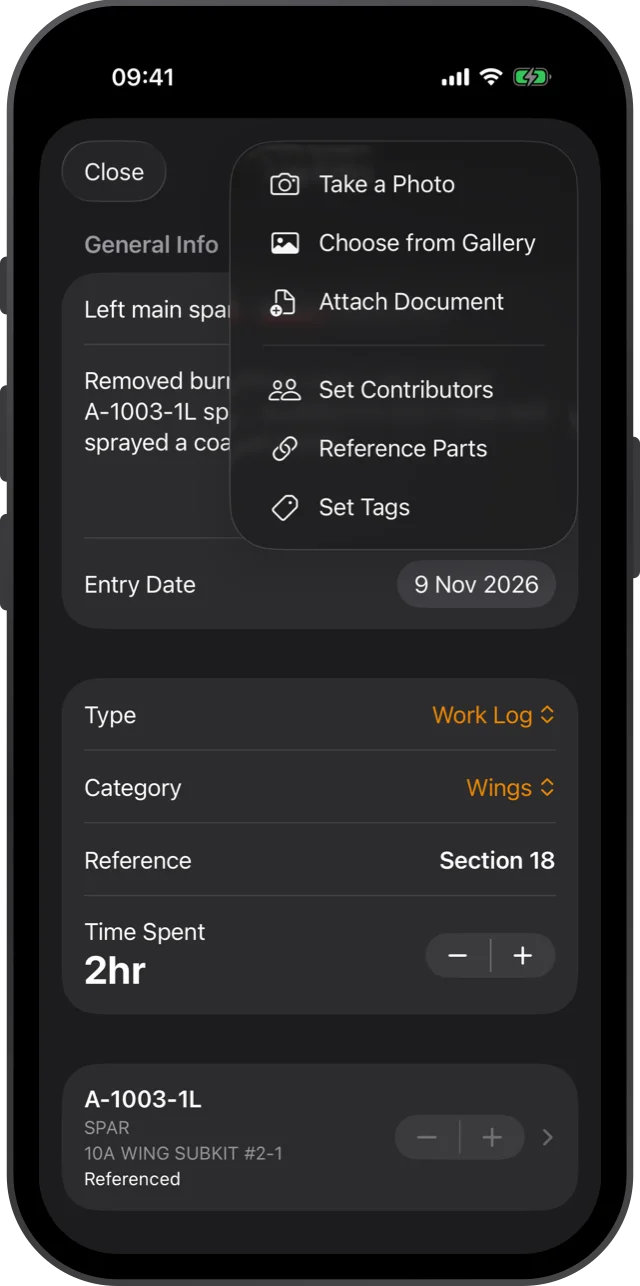
- Title – a short summary, for example “Left main spar – deburr and prime”.
- Description – what you did, in as much detail as you like.
- Entry Date – today by default; change it if you’re catching up on older work.
- Type – Work Log for build work. Other types like Achievement, Observation, Advice, Mistake and Discrepancy help you record milestones, lessons and problems.
- Category – the part of the aircraft, for example Wings.
- Reference – the section or page of your assembly manual.
Tracking time
Set Time Spent with the − and + buttons, in 15-minute steps. This time counts towards your project total, the category and every tag on the entry.
Adding tags, contributors, parts and photos
Tap + at the top of the entry. From here you can:
- Take a Photo or Choose from Gallery
- Attach Document – a PDF of up to 100 MB
- Set Contributors – who worked on it
- Reference Parts – link parts from your inventory
- Set Tags – the type of work
Splitting time between contributors
When you add contributors, Time Spent becomes Total Time, and each person gets their own time. A contributor’s time doesn’t change the project total. Use Total Time for the length of the session, and the per-person times for who did how much.
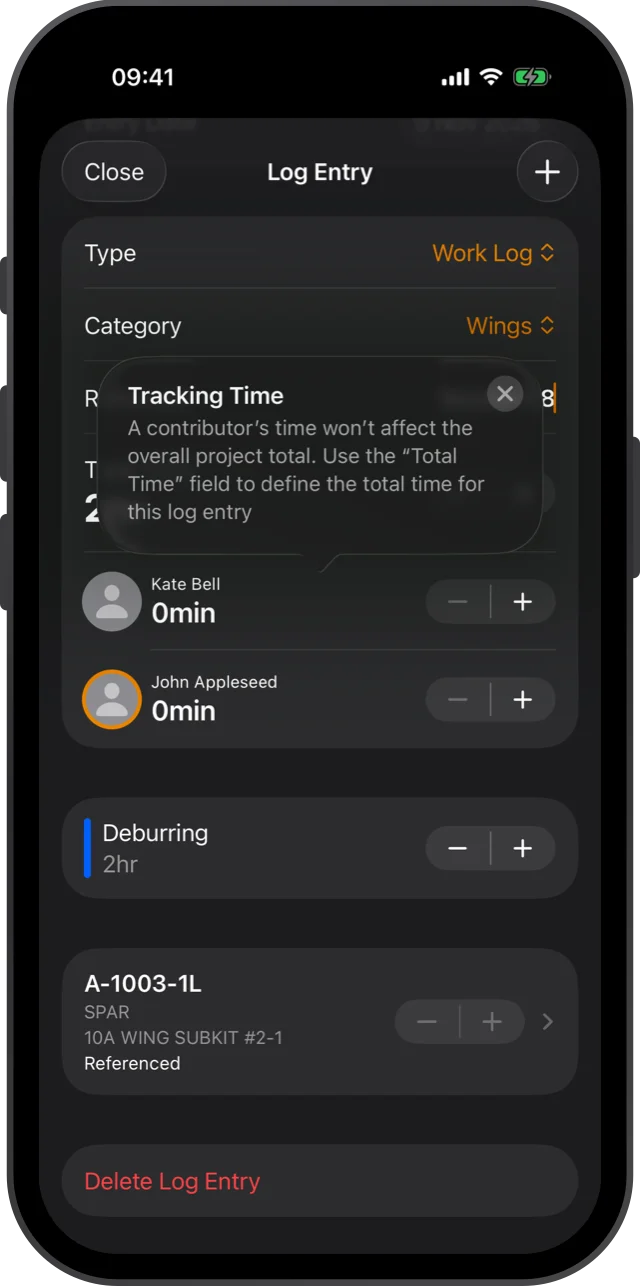
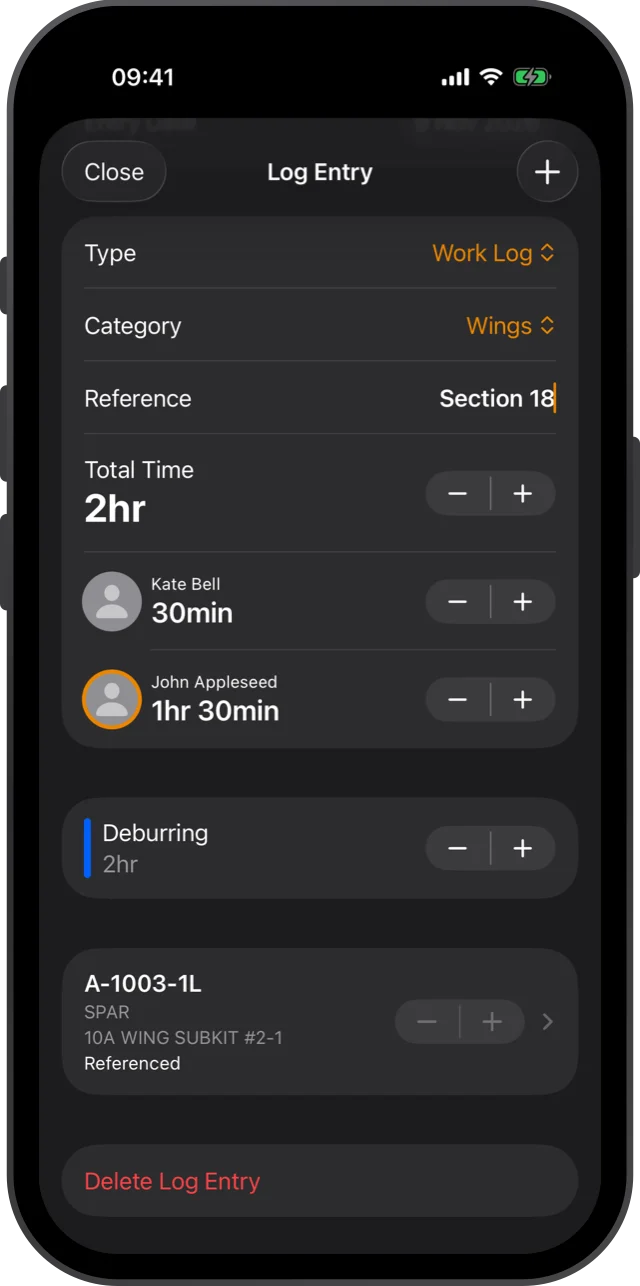
Each tag on the entry has its own time too, so a session spent half riveting and half deburring can be split between the two.
Linked parts
Each linked part shows its stock code, name and sub-kit. It stays marked Referenced, or you can record how many you used. Tap the arrow to open the part.
Photos
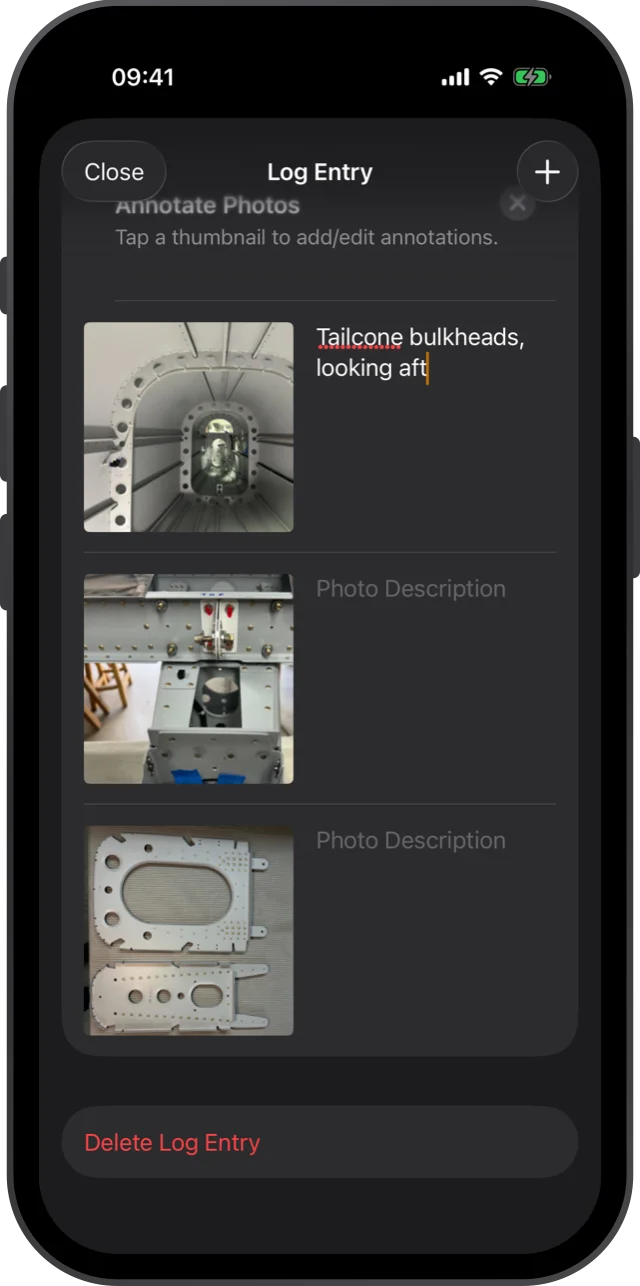
Photos appear in the entry with a Photo Description field next to each one. Tap a photo to annotate it (see how to annotate photos).
Saving
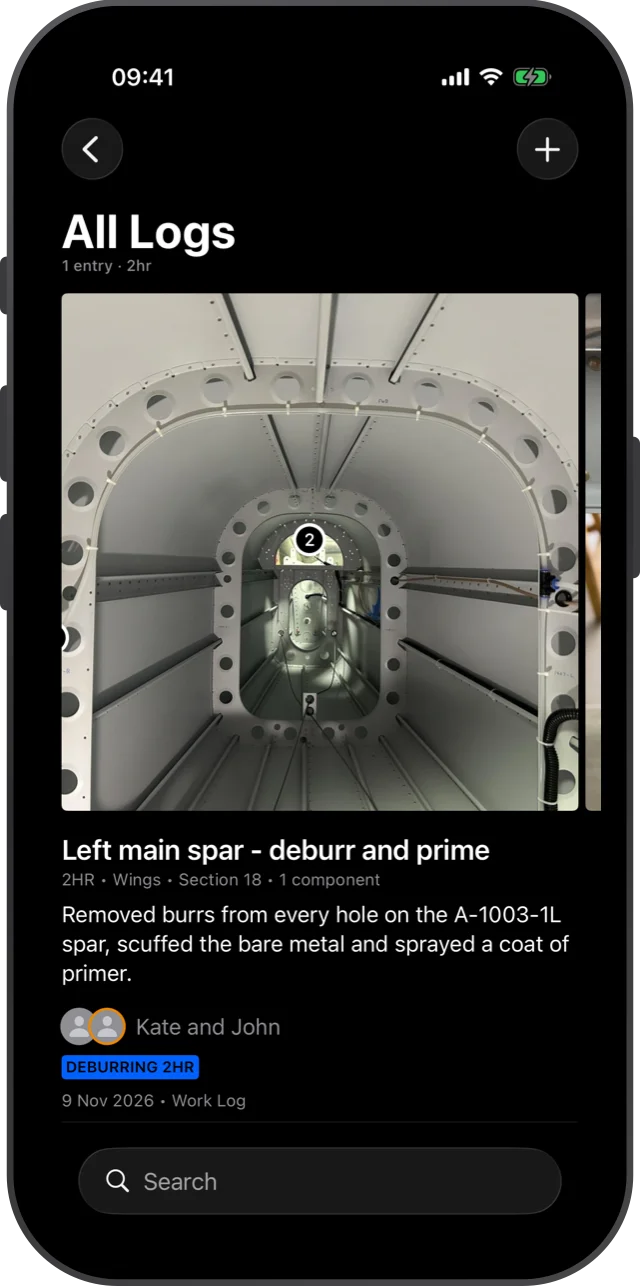
Tap Close. The entry is saved and appears in All Logs with its first photo, time, category, contributors and tags.
The sidebar totals update straight away, so you can see the hours per category, tag and record type.